



 Full Games List
 Featured Games
 New Games
 Reviews
 Media
Media Images
 Blogs
Blogs Game Updates
 Images Feedback Summary
 Game Design Highlights
 Tutorials
 Articles
 Scripts
 Utilities / Plugins
 Resources
 Engines
 Engine Bulletins
 What is Makerscore?
 Past Events
 Achievements
 Misaos
 Forums
 Chat
Chat New to RMN?
 Full Store List
 RMN Music Pack (free)



 Profile
 Locker
 Play Lists
CHERRY'S PROFILE

 Close
CloseSearch
Filter
 All
All Game Pages
 User Statuses
 Changing Special Symbols rm2k3
Everything can be done.
First, make a backup of your rpg_rt.exe file. Then google for "Resource Hacker" and download it. Open your rpg_rt.exe in it. Then go to Bitmap->EXFONT->0. This is the symbols' image. You can use the Actions->Save ... menu item to save it as bmp file and modify it. After modifying, make sure you save it as a 1-bit image (black/white). Then, use Actions->Replace Bitmap... to replace the old image with your new one. After that, click File->Save.
First, make a backup of your rpg_rt.exe file. Then google for "Resource Hacker" and download it. Open your rpg_rt.exe in it. Then go to Bitmap->EXFONT->0. This is the symbols' image. You can use the Actions->Save ... menu item to save it as bmp file and modify it. After modifying, make sure you save it as a 1-bit image (black/white). Then, use Actions->Replace Bitmap... to replace the old image with your new one. After that, click File->Save.
How do I Stop the Rm2k3 Screen Blinking?
AnotherFullscreenMode does not modify anything of your project. You start it independently, when the game is already running. It will then "take ownership" of the game's window, hide it, create a new window and then repeatedly get the content of the old, hidden window, apply filters if necessary and display it in the new window. The new window can also be fullscreen (without changing the resolution).
How do I Stop the Rm2k3 Screen Blinking?
That's a strange keyboard... No, there is no such alternative. Maybe you have a special key on your keyboard (like Fn) which will make F7/F8 work normally when pressed together with that key?
How do I Stop the Rm2k3 Screen Blinking?
@Emanzi: Are you sure you started the game in windowed mode before? F6 strechtes the screen, exactly, because this mode doesn't blink. Or does it?
How do I Stop the Rm2k3 Screen Blinking?
I made a tool called AnotherFullscreenMode, which fixes all sorts of graphical problems in fullscreen mode:
Cherry
{Copy & Paste}
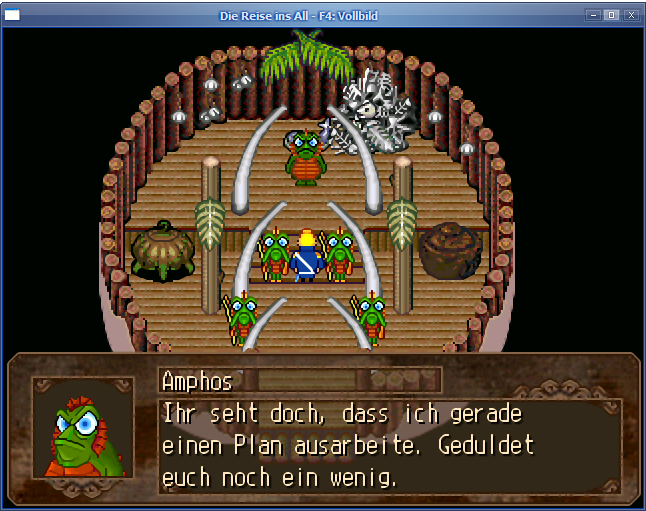
I wrote a tool which stretches the game to fullscreen without changing the resolution, it also allows you to apply a filter (Scale2x or hq2x) for better graphics.
http://cherrytree.at/downloads/afm.rar
readme.txt
This is a little tool which lets you play RPG Maker 2000/2003 games in fullscreen - without changing the resolution. This is a workaround for people who have problems with their screen or their graphics driver. AnotherFullscreenMode needs at least a 1 GHz CPU to run without lagging.
First, start your game (in windowed mode). Then start AnotherFullscreenMode. By pressing F6 you can switch between fullscreen and windowed mode, F7 shows or hides the FPS.
Using F8, you can set the filter: none -> Scale2x -> hq2x
Example screen with hq2x (in windowed mode):
Mass Paste
Yes, but Multi-Copy works differently. It copies a lot of monster groups together, it does not duplicate one monster group many time.
In your case, I'd just copy the first monster group and then just repeatedly hit the arrow-down key and Ctrl+V.
In your case, I'd just copy the first monster group and then just repeatedly hit the arrow-down key and Ctrl+V.
RM2k3 Debugging Addon (No crash on missing images, event tracing, save on F11 and more)
This should help RM2k3 users with debugging their game. A little preview of the RM2k3 Revolution Patch, which I am currently working on.
Download: http://share.cherrytree.at/showfile-2967/debug_addon.rar
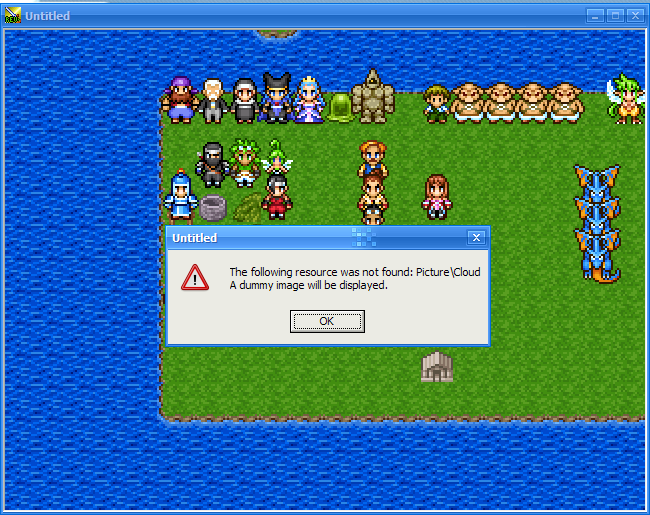
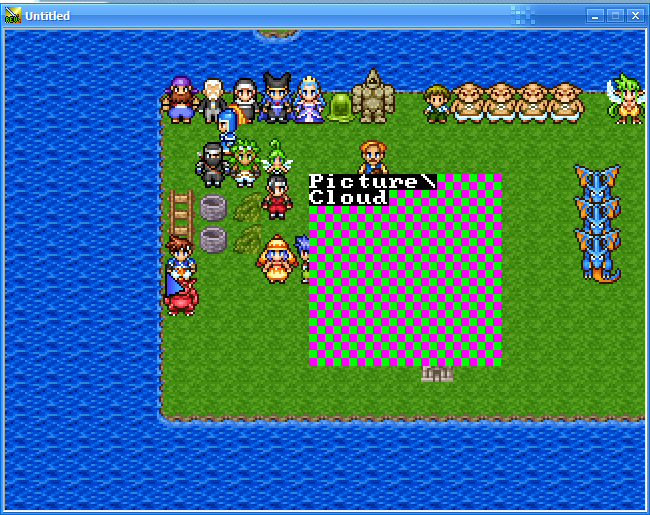
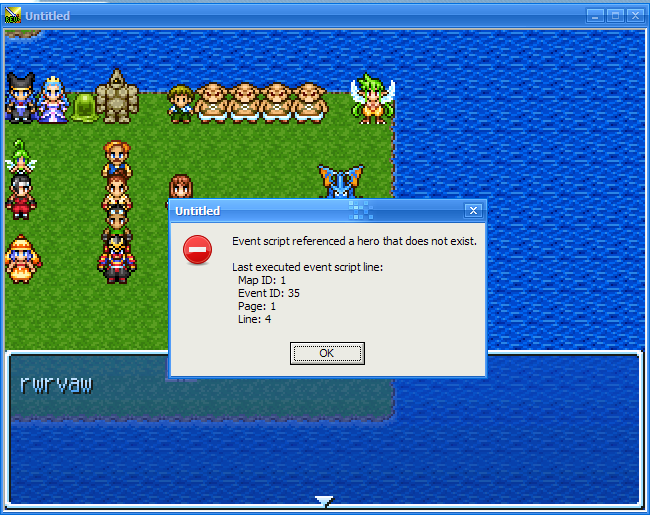
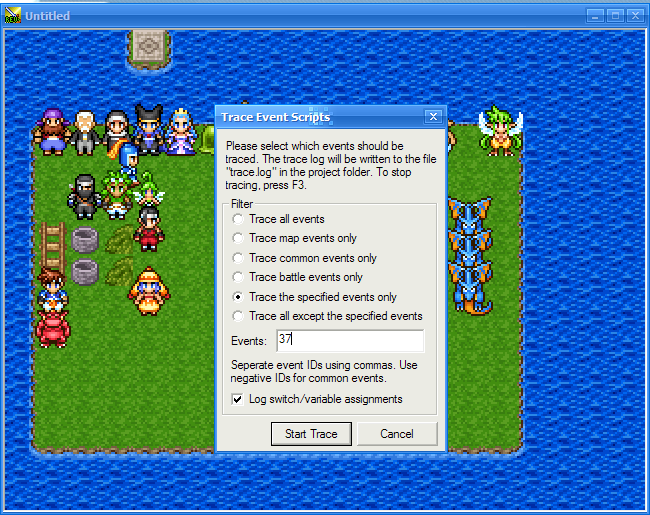
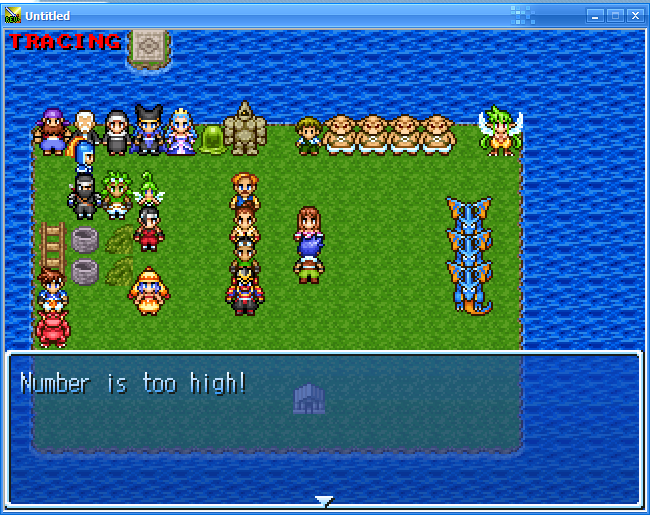
Screenshots:

Best regards,
Cherry
Download: http://share.cherrytree.at/showfile-2967/debug_addon.rar
readme.txt
DEBUG ADDON FOR RM2k3 v1.08
===========================
by David "Cherry" Trapp
www.cherrytree.at
This is a little help for debugging RM2k3 games. It's a patched rpg_rt.exe file, containing some features of the (yet unfinished) RM2k3 Revolution Patch.
To use this add-on, either use the provided rpg_rt.exe file instead of your own (and re-apply all other patches), or apply the provided debug_addon.ips on your existing rpg_rt.exe file (version 1.08 only!). In both cases, you need to put revhelper.dll in your project folder (otherwise you will get a "Runtime error 226" on startup).
FEATURES
========
1) When the game crashes, it's not closed, but restarted. Additionally, the last executed event script line (event ID, event page, line number) is shown.
2) When an image file is missing, the game doesn't crash. Instead, a dummy image and a warning are displayed.
3) In testplay, you can press F11 to save the game at any time.
4) Information about the currently executed event script line is always put in the variables 49991 (current event ID), 49992 (current event page) and 49993 (current line number). If you don't use so many variables, you can use "Variable Reference" to access this information.
5) In testplay, you can press F3 to trace events. You can select which events you want to trace and whether switch/variable assignments should be logged or not. Every executed event script line (and information about values of switches and variables) is saved in the file "trace.log". Press F3 again to stop tracing. You can use the logfile for debugging. (Note: The "Frm" value in the logfile is the number of frames since the start of the game.)
Battle events are not fully supported, they will get event ID 0 and page ID 0, regardless which battle event page is executed. Common events get a negative ID and page ID 0. Map events get their ID and page ID as normal.
Screenshots:
Best regards,
Cherry
Font changing patch.
Hmm, I don't know... Maybe they are TrueType fonts. I must admit that I found that font package somewhere else on the internet (at a foreign RM site), and I only tested a few of those fonts.
Sort of like 'new game +' but not really...
Font changing patch.
It has no effect on RMText.
Okay, all you have to do is open your rpg_rt.exe in the Font Changer, and change the fonts. You have to enter the full name of the font (the name you see in the "font name" column in the windows\fonts folder, excluding the "(TrueType)"/"(OpenType)" part). You can click "Test" to see how this font looks in a game, but this only works when the RM2k RTP is installed. To apply the changes, click "Übernehmen".
Okay, but there are two problems.
Firstly, the font name must not exceed 14 characters for the first font or 10 characters for the second font. Otherwise, it just won't work.
Secondly, TrueType fonts (*.ttf) won't work (in most cases, at least), because when font anti-aliasing is activated (it is, by default), the font will become unreadably bold. You need to use bitmap fonts (*.fon)
Unfortunately, the Manaspace fonts has both problems: Its name ("Manaspace Regular") is 17 characters long, and it's a TrueType font. Thus, you simply can't use it.
Please look at this post, there is a list of 18 very nice (and working!) fonts.
If you don't want the player to have to install the font on his PC himself, you can use AutoFontInstall. This is how AutoFontInstall works: Rename your rpg_rt.exe to old_rpg_rt.exe, then copy AutoFontInstall's rpg_rt.exe into your project. Then, copy the font file into your project and create a file called "fonts.cfg" and write the font's filename into it.
Okay, all you have to do is open your rpg_rt.exe in the Font Changer, and change the fonts. You have to enter the full name of the font (the name you see in the "font name" column in the windows\fonts folder, excluding the "(TrueType)"/"(OpenType)" part). You can click "Test" to see how this font looks in a game, but this only works when the RM2k RTP is installed. To apply the changes, click "Übernehmen".
Okay, but there are two problems.
Firstly, the font name must not exceed 14 characters for the first font or 10 characters for the second font. Otherwise, it just won't work.
Secondly, TrueType fonts (*.ttf) won't work (in most cases, at least), because when font anti-aliasing is activated (it is, by default), the font will become unreadably bold. You need to use bitmap fonts (*.fon)
Unfortunately, the Manaspace fonts has both problems: Its name ("Manaspace Regular") is 17 characters long, and it's a TrueType font. Thus, you simply can't use it.
Please look at this post, there is a list of 18 very nice (and working!) fonts.
If you don't want the player to have to install the font on his PC himself, you can use AutoFontInstall. This is how AutoFontInstall works: Rename your rpg_rt.exe to old_rpg_rt.exe, then copy AutoFontInstall's rpg_rt.exe into your project. Then, copy the font file into your project and create a file called "fonts.cfg" and write the font's filename into it.
 Games - Tester
 Games - Other
